How to Reset a Wi-Fi Router for Better Speed
by Abdulrasaq • Tech How-To • August 10, 2025
When your Wi-Fi slows down, a proper reset clears memory leaks, frees stuck connections, and renews your IP lease. The key is choosing the right level of reset: a quick reboot for most cases, a longer power cycle if things still lag, and a full factory reset only when the router is truly corrupted or misconfigured.
Before You Begin (2 Quick Checks)
- Compare near vs far: If it’s fast beside the router but slow in a room, it’s a range/interference problem-not your ISP.
- Check outage/congestion: If mobile data is normal and wired is slow too, your ISP may be the bottleneck-reset won’t fix that.
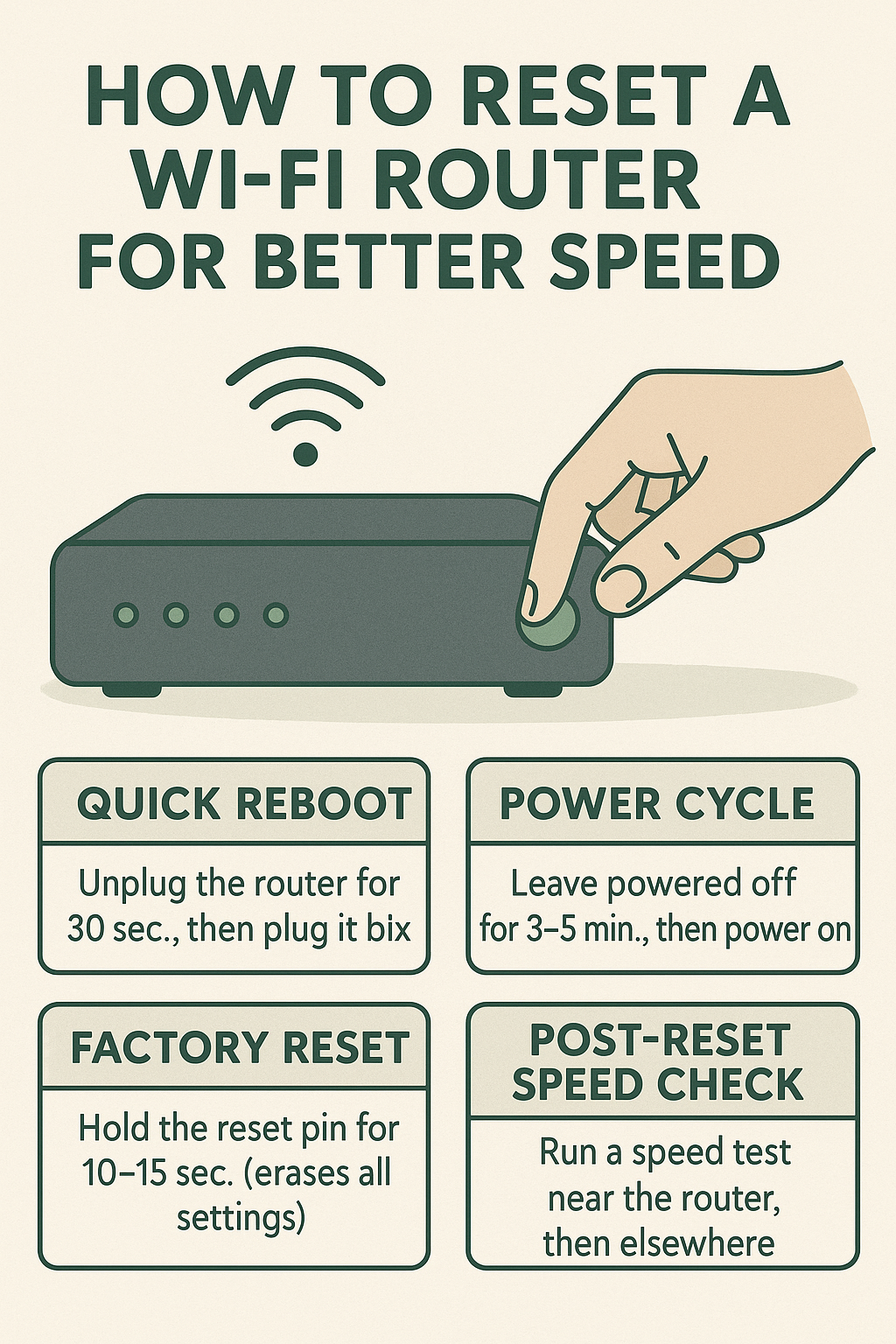
Step 1 - Quick Reboot (Fastest Fix)
- Unplug the router (and the modem if separate).
- Wait 30 seconds, then plug the modem in first. Wait until it’s solid/online.
- Plug in the router. Give it 2–3 minutes to broadcast Wi-Fi again.
- Reconnect and test a speed-test site/app near the router.
Step 2 - Deeper Power Cycle (DHCP Refresh)
- Power off both devices for 3–5 minutes. This clears stale leases and overheated cache.
- Power on modem → router (in that order). Wait for LEDs to stabilize.
- Test speeds again. If still poor, continue below.
Step 3 - Soft Reset from the Admin Page
- Connect to the router’s Wi-Fi or via Ethernet. Open
192.168.0.1or192.168.1.1(varies by brand). - Log in and choose Reboot (or Restart). Some routers also offer “Renew WAN IP”.
- After the reboot completes, re-test speed and stability.
Step 4 - Factory Reset (Last Resort)
Warning: Factory reset wipes your Wi-Fi name, password, parental controls, port forwards, DNS settings-everything. Note your ISP username/password (if PPPoE) and any custom settings first.
- Hold the router’s Reset pin for 10–15 seconds until LEDs flash.
- Wait 2–3 minutes to reboot, then connect to the default Wi-Fi shown on the router label.
- Visit the admin page and run the setup wizard: set a new SSID, strong Wi-Fi password, and admin password.
After the Reset: Boost Stability & Speed
- Placement: Put the router high and central, away from metal and microwaves. Avoid inside cabinets.
- Update firmware: In the admin page, check for updates-new code fixes bugs and improves performance.
- Channel selection: Set 2.4 GHz to channel 1/6/11 (least crowded) or use Auto; keep 5 GHz on Auto.
- Separate bands: Name 2.4 GHz and 5 GHz differently (e.g., Home-2G / Home-5G) so devices can choose the faster band.
- Reboot cadence: If your router slows weekly, schedule an automatic reboot at night (many routers support this).
Quick Troubleshooting
- Only one device is slow? Forget and re-join the network, then reboot that device.
- Ethernet is fast, Wi-Fi is slow? It’s a wireless issue: move the router, change channel, or use 5 GHz.
- Combo modem/router? Power cycle once; if factory resetting, you’ll also restore ISP settings-have them ready.