How to Speed Up a Slow Phone Without Buying Anything
by Abdulrasaq • Tech How-To • August 7, 2025
Phones slow down for three main reasons: low free storage, too many background tasks, and visual effects/heavy apps. Fix those, and even older devices feel fresh. Follow these steps in order-each one is 100% free and uses only built-in settings.
What You’ll Do (Overview)
- Restart and clean memory
- Free storage (target: keep 15–20% free)
- Limit auto-start, background data & sync
- Reduce animations & disable bloat you don’t use
- Update phone & swap heavy apps for lighter ones
- Malware check and safe reset options if needed
Step 1 - Quick Restart
- Hold the power button → Restart.
- After boot, wait 60–90 seconds for the system to settle.
This clears temporary processes and frees RAM that was stuck.
Step 2 - Free Up Storage (Biggest Win)
- Go to Settings → Storage and check what’s heavy (Apps, Photos, Videos, WhatsApp, Downloads).
- Delete or move large videos, screen recordings, and duplicates.
- Open Files by Google (or your file manager) → use Clean to remove junk, temp files, and memes.
- For chat apps (WhatsApp/Telegram): Storage & data → Manage storage → clear large forwarded media.
- In Apps, sort by size → tap heavy apps → Clear cache (avoid clear data unless you know the consequences).
Goal: Keep at least 15–20% of total storage free. Android behaves badly when space is too tight.
Step 3 - Stop Apps from Hogging in the Background
- Auto-start: OEM tools (Samsung Device care, Xiaomi Security app, etc.) → disable auto-start for heavy apps you don’t need always-on.
- Background data: Settings → Network & Internet → Data usage → App data usage → toggle Background data off for culprits.
- Sync: Accounts → turn off auto-sync for apps you rarely use or make it manual.
- Battery optimization: Settings → Battery → Battery optimization/Background limits → restrict power-hungry apps.
Don’t overdo it: Keep messaging, mail, and essential services allowed in background so you still get notifications.
Step 4 - Make Animations Snappy
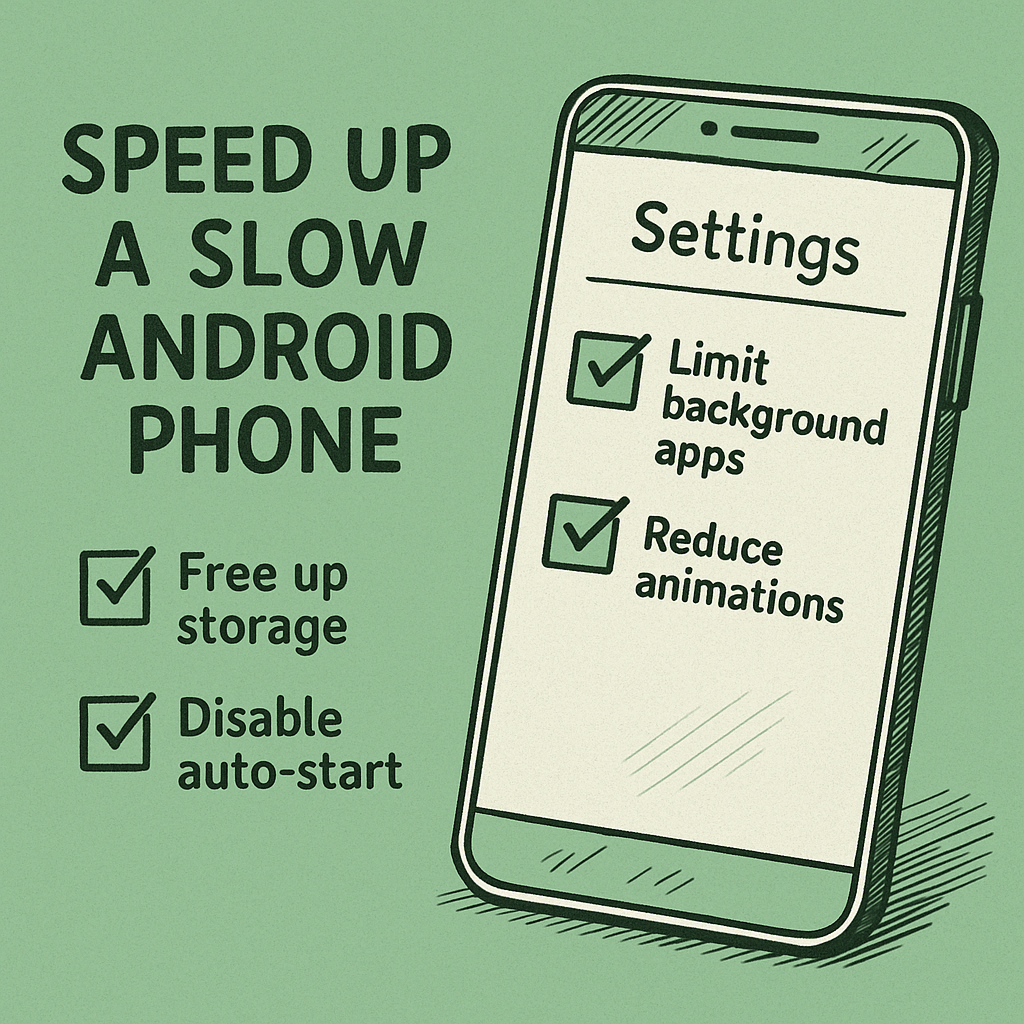
- Enable Developer options: Settings → About phone → tap Build number 7× (enter PIN).
- Go to Settings → System → Developer options.
- Set Window animation scale, Transition animation scale, Animator duration scale to 0.5x (or off).
This doesn’t increase raw performance, but the UI feels instantly faster.
Step 5 - Update & Lighten Your Apps
- Update Android: Settings → System → System update.
- Update apps: Play Store → Manage apps & device → Updates.
- Replace heavy apps with Lite/PWA versions (e.g., Facebook Lite, Twitter Lite, YouTube in browser/PWA).
- Uninstall preloaded bloat you never use. If uninstall isn’t available, Disable it.
Step 6 - Clean Home Screen & Reduce Live Stuff
- Remove widgets you don’t need (weather, news tickers, giant clocks).
- Use a static wallpaper (avoid live wallpapers).
- Limit third-party launchers if they feel laggy; try the default launcher again.
Step 7 - Health Check (No “Boosters”)
- Antivirus/malware scan: Use Google Play Protect or a reputable scanner you trust, then uninstall it when done.
- Avoid task killers/boosters: They fight Android’s memory manager and usually make things worse.
- Permissions audit: Revoke microphone/location/run-in-background permissions for apps that don’t need them.
Step 8 - Reset Options (Safe First, Nuclear Last)
- Reset network settings to fix connectivity slowdowns (Wi-Fi/mobile/Bluetooth settings will be cleared).
- Reset all settings (keeps your data, resets system settings).
- Factory reset only after full backup when the phone is truly messed up: Settings → System → Reset → Erase all data.
Backup first: Photos, chats (Google Drive/WhatsApp), and 2FA recovery codes before any major reset.
Brand Quick Notes (Optional)
- Samsung: Settings → Battery and device care → Optimize now; disable/put to sleep rarely used apps.
- Xiaomi/Redmi: Security app → Boost speed, Cleaner, and manage Autostart permissions.
- Infinix/Tecno: Phone Master → Autostart manager; watch for aggressive battery savers killing notifications.
- OnePlus: Battery optimization → turn on for heavy offenders; disable RAM expansion if it slows things.
Extra Quick Wins
- Clear browser downloads & old APKs in Downloads folder.
- In Camera, lower default video resolution if you never use 4K.
- Turn off Bluetooth/NFC when not needed.
- For old phones: turn off auto-update for heavy games; update them only when you plan to play.