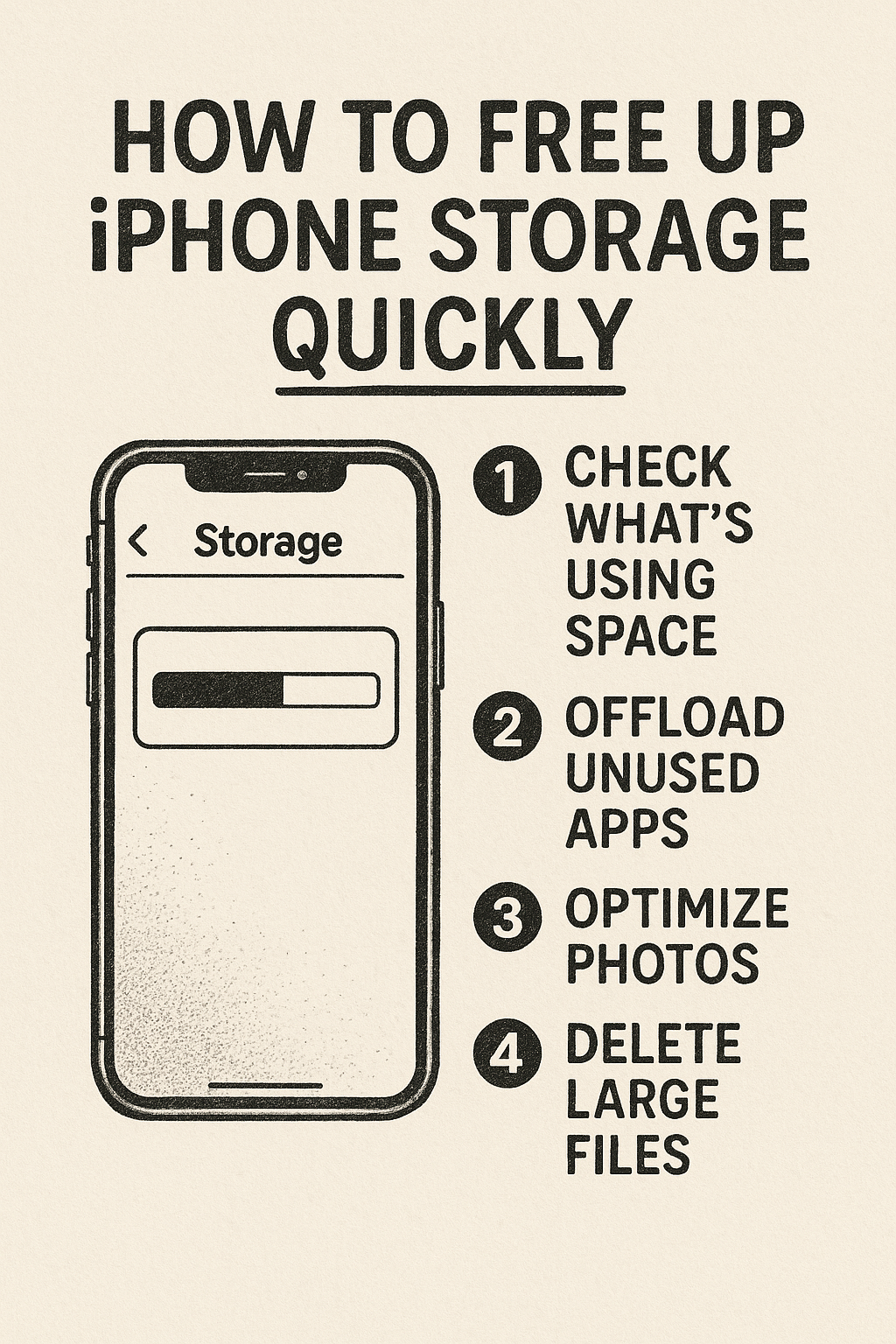
How to Free Up iPhone Storage Quickly
by Abdulrasaq • Tech How-To • August 10, 2025
If your iPhone keeps warning “iPhone Storage Almost Full,” you can free up space in minutes without losing important files. The fastest way is to identify what’s consuming storage, then remove or optimize the biggest items first-large apps, videos, downloads, and cached data. These steps also work on iPad (look for “iPad Storage” in Settings).
What You’ll Need
- Wi-Fi connection (recommended for iCloud syncing)
- Your Apple ID signed into iCloud (optional but useful)
- 5-10 minutes of free time
Step 1 - Check What’s Using Space
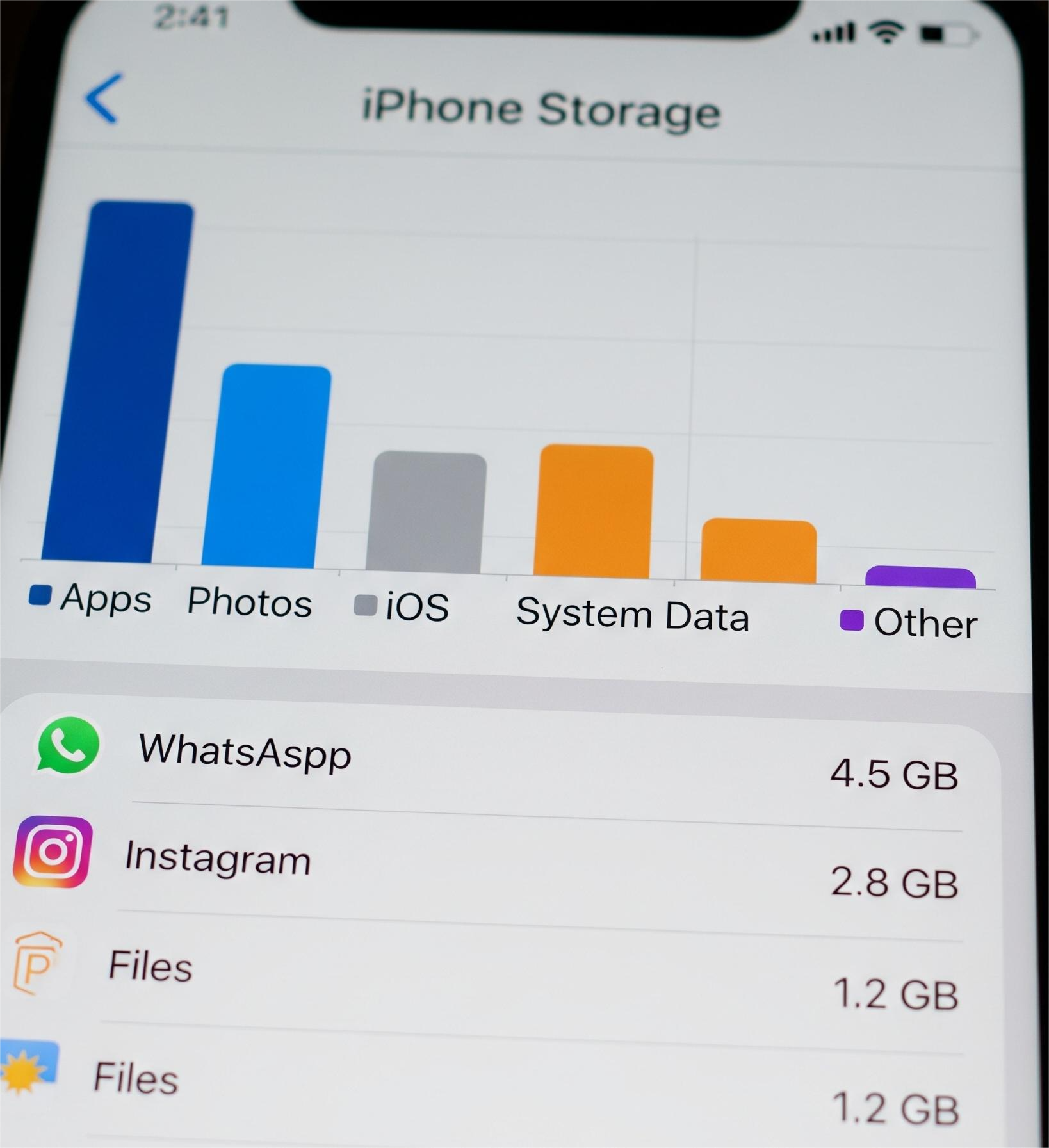
Start by seeing a breakdown of everything using your storage. Apple explains how this section works here: Apple iPhone Storage Guide.
- Go to Settings → General → iPhone Storage.
- Wait a few seconds for the graph to load.
- Scroll to see apps listed by size-this shows where to clean first.
Step 2 - Offload Unused Apps (Keep Your Data)
Offloading deletes the app but keeps your documents so nothing important is lost.
- Go to Settings → General → iPhone Storage.
- Enable Offload Unused Apps, or select an app → Offload App.
- You can reinstall anytime-your data restores automatically.
Learn more from Apple: How Offload Apps Works.
Step 3 - Optimize Photos (Biggest Storage Saver)
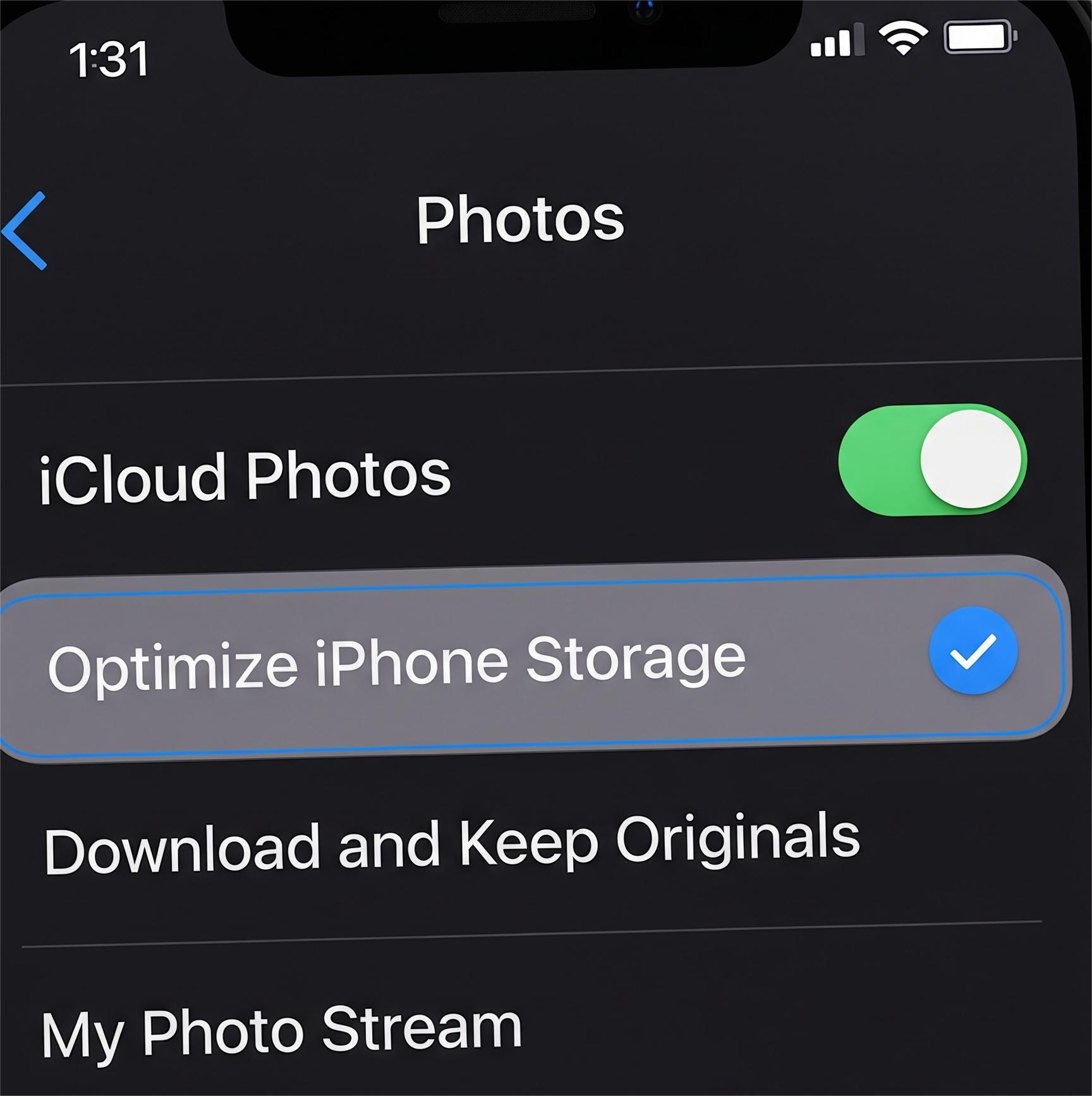
Photos and videos take the most space on most iPhones. Turning on iCloud Photos with optimization can free several gigabytes at once.
- Open Settings → Your Name → iCloud → Photos.
- Turn on iCloud Photos.
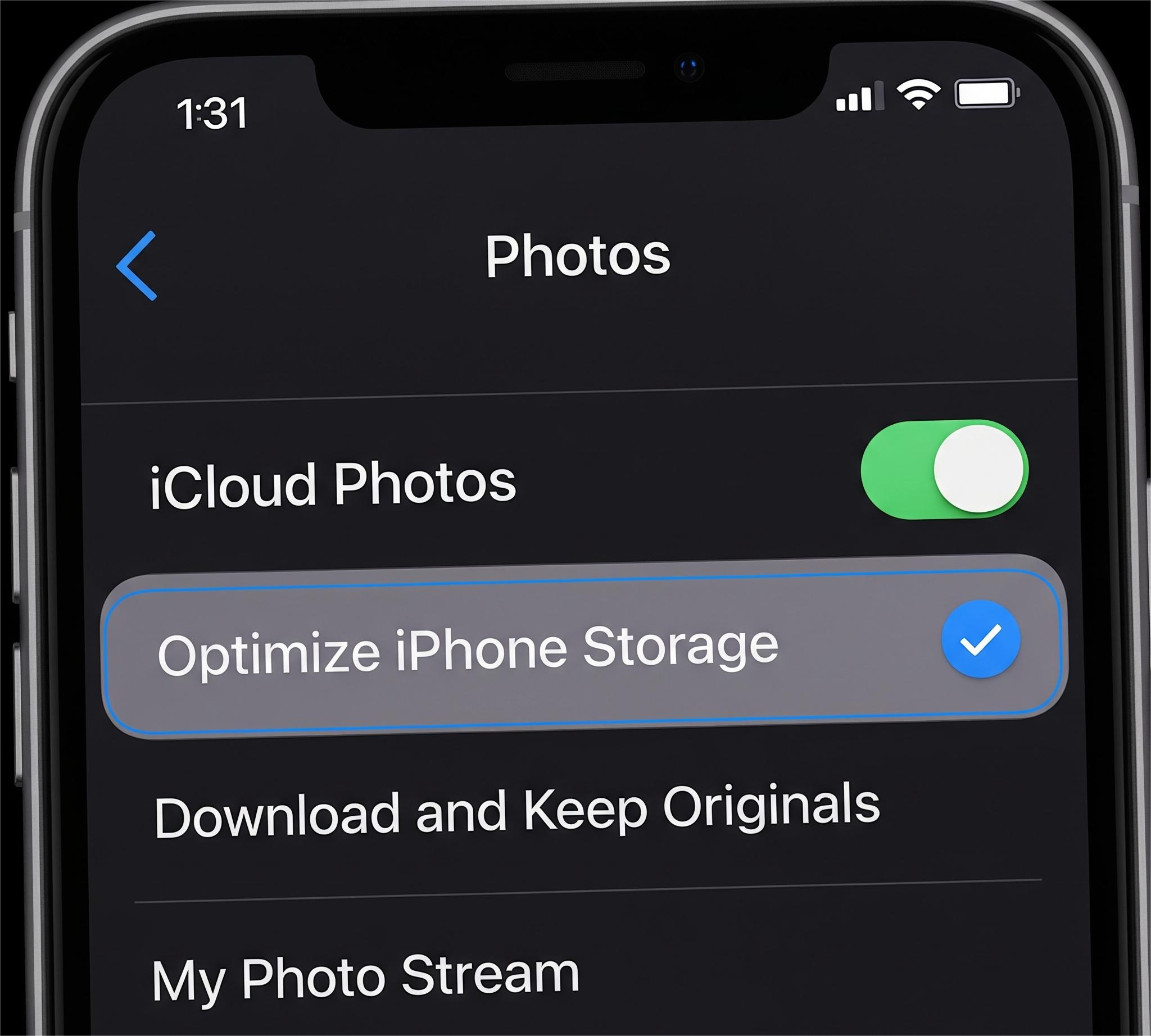
- Select Optimize iPhone Storage.
- In Photos app, go to Albums → Recently Deleted and empty it.
Apple explains Optimize Storage here: iCloud Photos Help.
Step 4 - Remove Big Media & Offline Downloads
- TV App: Open TV → Library → Downloaded → delete watched videos.
- Music / Spotify / YouTube: Delete offline playlists and large audio/video downloads.
- Podcasts: Settings → Podcasts → remove played episodes.
- Files App: Files → On My iPhone → Downloads → clean large items.
- WhatsApp / Telegram: Settings → Storage → review and delete large media folders.
Step 5 - Clear Safari Website Data
This removes cached web files and cookies.
- Go to Settings → Safari.
- Tap Clear History and Website Data.
Step 6 - Trim Messages Storage
- Go to Settings → Messages → Keep Messages → choose 30 Days or 1 Year.
- Go to Settings → General → iPhone Storage → Messages → delete large attachments.
Step 7 - Reduce Future File Sizes
- Camera → Formats: Choose High Efficiency (smaller photos/videos).
- Camera → Record Video: Set to 1080p at 30 fps.
- Record shorter clips and avoid high-fps slow motion unless needed.
iPad Notes
- The same settings apply-look for iPad Storage.
- Pro apps like drawing/video editors may store gigabytes of project files. Review and archive old work inside each app.
Quick Wins (1-2 Minutes)
- Offload 2-3 large unused apps.
- Turn on Optimize iPhone Storage.
- Delete downloaded videos and leftover files in Downloads.
Common Mistakes to Avoid
- Thinking iCloud backup frees space - it doesn’t.
- Deleting an app instead of using Offload App (you lose data if you delete).
- Recording everything in 4K/60 fps - this fills storage extremely fast.
FAQ
Does clearing Safari data delete passwords? No, passwords stay in iCloud Keychain.
Does Optimize iPhone Storage delete originals? No, originals stay in iCloud.
Is there a single button to clear all caches? No-use Offload App or each app’s settings.